The request and the work, together
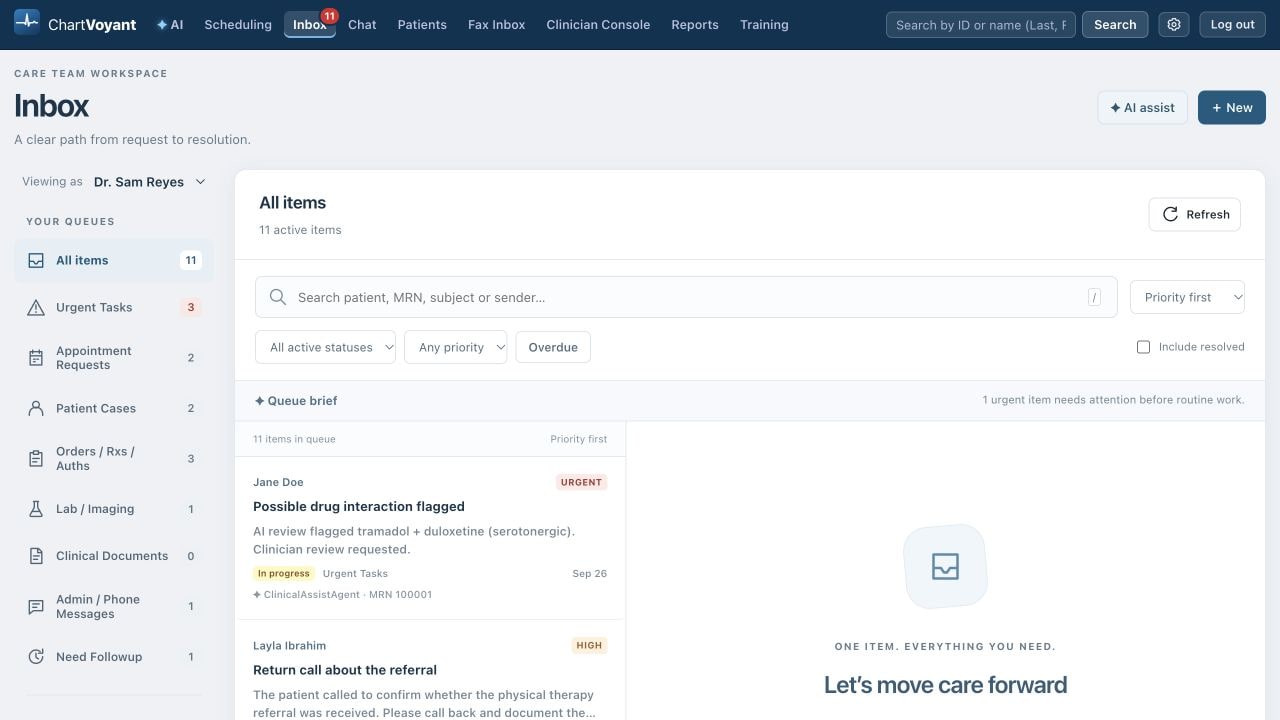
Appointment requests, patient cases, order follow-ups and results all need a next step. The refreshed Inbox keeps narrow category tabs on the left, the queue beside the selected item, and the patient and request details in its workspace. You can open the chart when you need the source record and return to the same task.
Viewing as uses a staff-name dropdown for covering a colleague's queue. The red badge on the top Inbox tab counts your own unread active tasks, independent of searches or category filters. Opening a task clears its notification and remembers that you read it. The task stays in your queue until resolved. The badge disappears when every task has been read; covering a colleague does not clear their notifications.
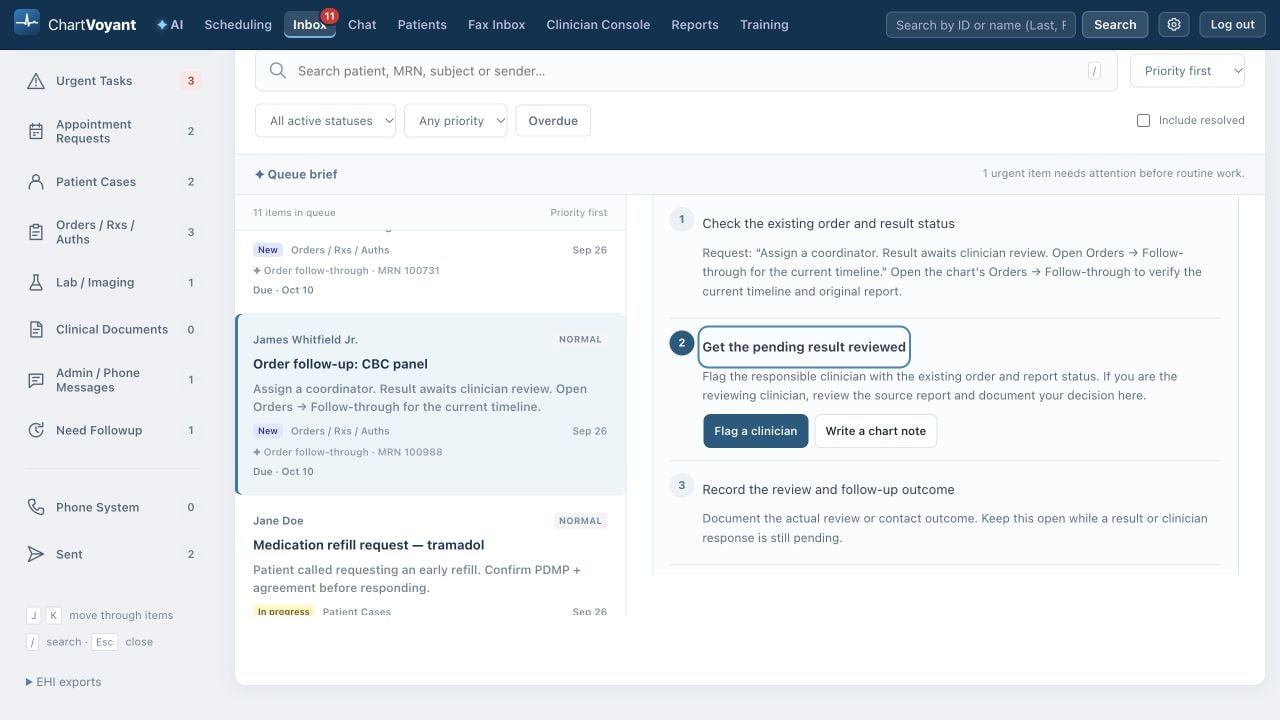
Click the step you need
Next steps uses the request and saved outcomes to guide the work. An appointment request calls for finding a visit and telling the patient. An existing-order follow-up calls for checking the order's current timeline and original report. Click a step title to open its actions immediately; the first unfinished step is open to begin with. There is no separate Start working button.
Actions such as booking a slot, recording a contact or flagging a clinician are available from the item when the workflow supports them. Clicking a title does not complete the step. A successfully saved action records its outcome and changes a new, acknowledged or reopened item to In progress. Read that outcome before moving on.
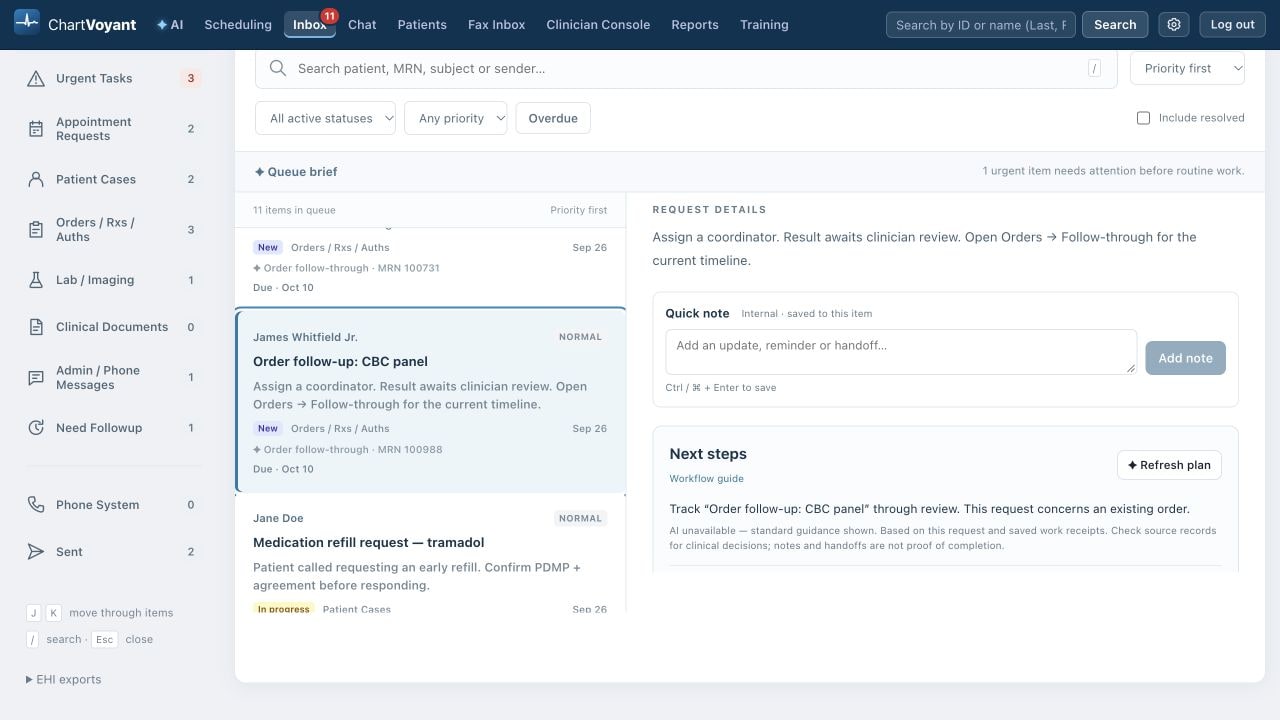
A quick note without losing your place
Type a short reminder or handoff into Quick note, then choose Add note or press Ctrl / ⌘ + Enter. It is an internal update on this request. It does not message the patient, complete a step or resolve the item. Keep the task open while its required work is still pending; completed work can be resolved, and an item that needs no action can be closed with a recorded reason.
What AI suggests, and what a person confirms
AI suggested plan is a draft based on the request and saved work. Workflow guide means standard guidance is being shown. You can refresh the plan as the case changes. Neither label proves a report was reviewed, a patient was reached or a clinical decision was made. Check the source records and the actual saved outcome.
Non-Device CDS
AI guidance stays reviewable and draft-only. A clinician still reviews the original clinical evidence and confirms decisions. A note or a handoff is a record of that action, not proof that the underlying clinical task is complete.