The ChartVoyant product tour · 01—10

One chart.
Every part of the day.

From the first appointment to the last follow-up. Explore ten ways ChartVoyant brings clinical care and practice work into one connected EMR.

Real product screenshots. Synthetic demo data. No real patients.

A view inside ChartVoyantScheduling
The synthetic ChartVoyant day board, with appointments and the practice work queue.
One workspace for the people and work behind every visit.

The AI drafts. You decide. Clinical suggestions stay reviewable, and a clinician signs the note.

Built for independent practices

01Documentation

Be present. Keep the note moving.

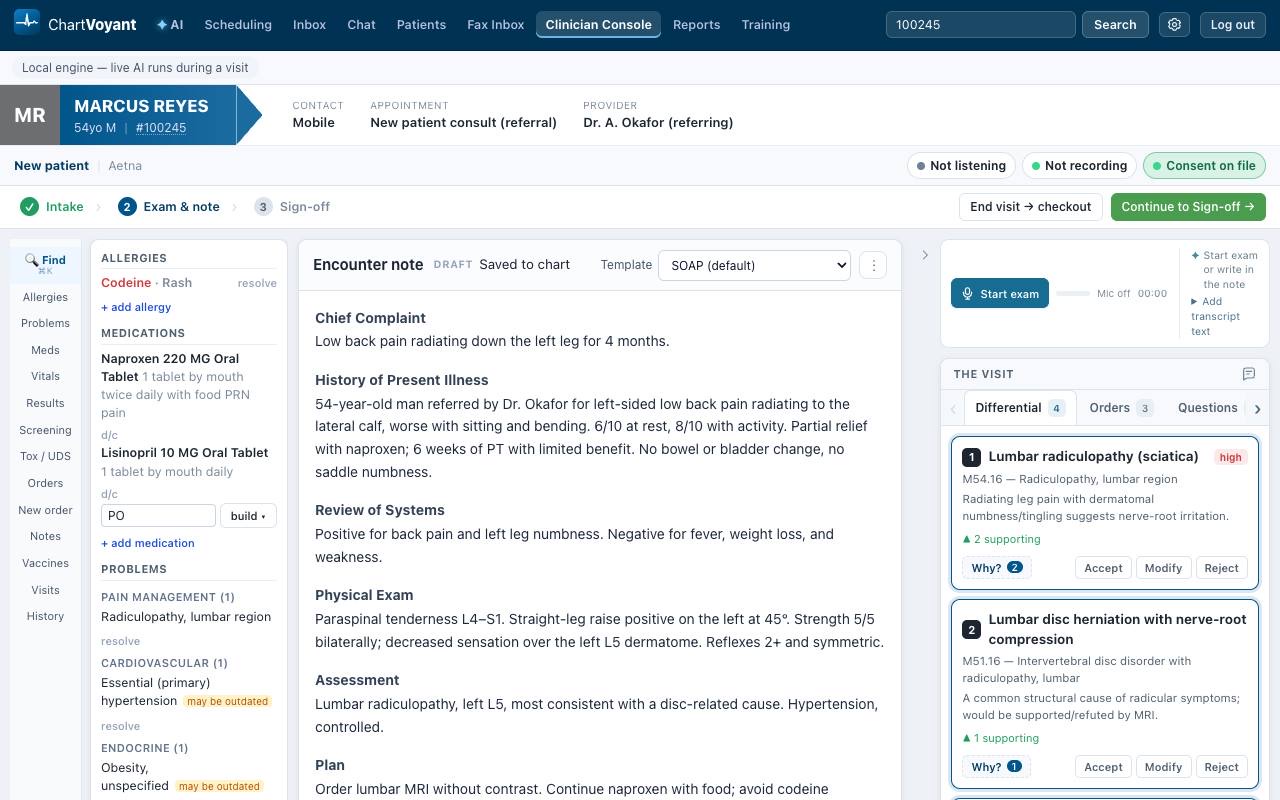
Capture the conversation with an editable encounter note in view. AI-assisted drafts bring the visit into a structured note, while your own edits stay in your hands. Review the documentation and sign when it is ready.

  • Voice capture
  • Editable note drafts
  • Clinician sign-off
Synthetic encounter workspace showing an unsigned clinical note beside chart context and reviewable clinical suggestions. AI-assisted notes · Synthetic demoEnlarge screenshot
An editable note, chart context, and reviewable clinical suggestions share one encounter workspace.

02The practice day

See the day. Know what comes next.

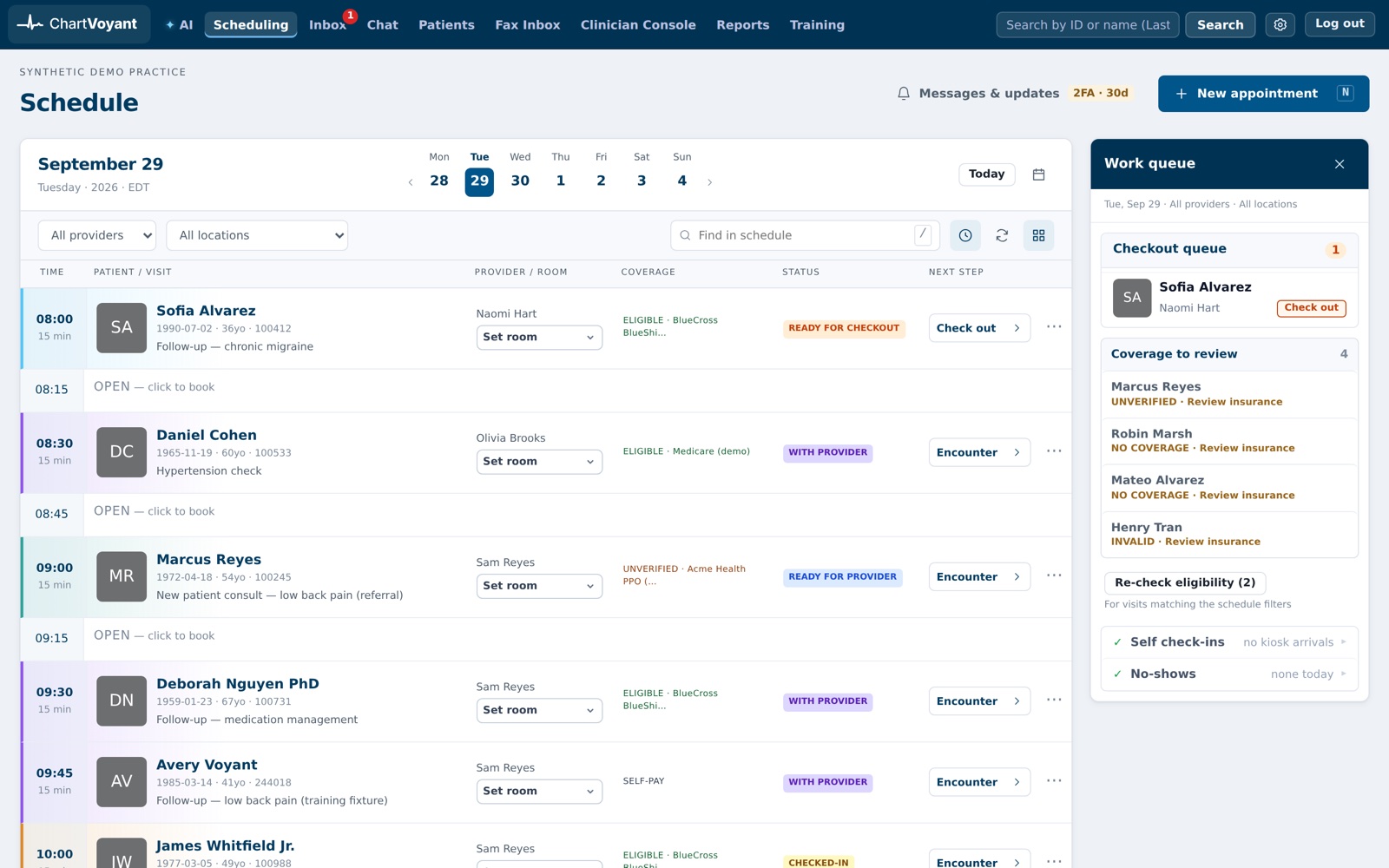
Move between a visual day board and the month calendar to manage appointments around provider availability. Visit status, coverage indicators, and a work queue help the team see who is arriving, who is ready, and what needs attention.

  • Day and month views
  • Visit progress
  • Provider availability
Synthetic day schedule with appointment rows, visit statuses, and the practice work queue. Scheduling · Synthetic demoEnlarge screenshot
The day board pairs appointments with the work that keeps visits moving.

03Front desk

A clearer start to every visit.

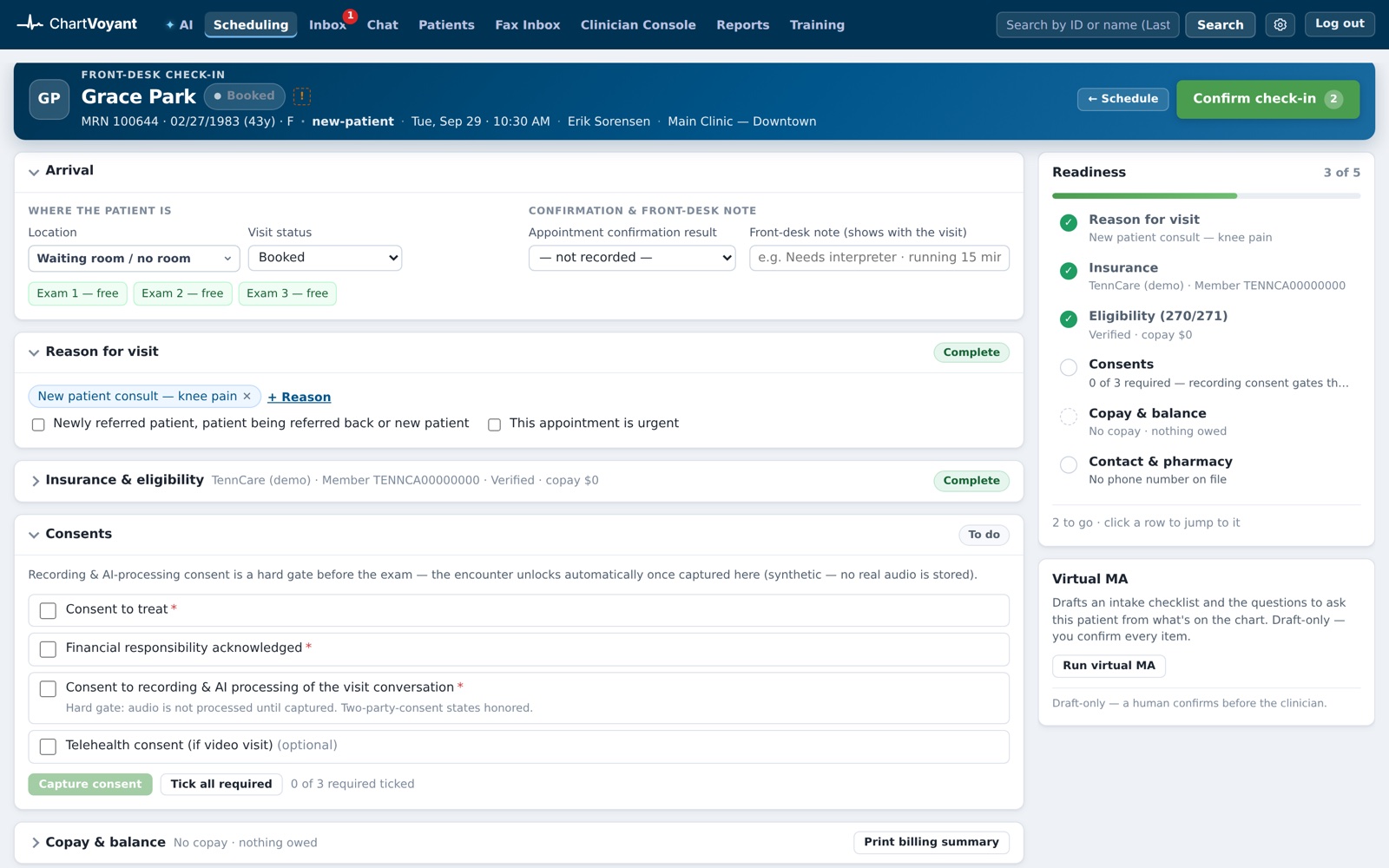
Bring insurance, consents, contact details, copays, and arrival tasks together in one check-in workspace. A readiness panel draws on the chart to show what still needs attention, so the front desk can review the gaps before confirming arrival.

  • Coverage review
  • Consent tracking
  • Chart-based readiness
Synthetic front-desk check-in workspace with patient details, task cards, and a readiness panel. Check-in & eligibility · Synthetic demoEnlarge screenshot
Check-in keeps the outstanding desk tasks beside the patient’s visit.

04The clinical record

Find the detail. Stay in the chart.

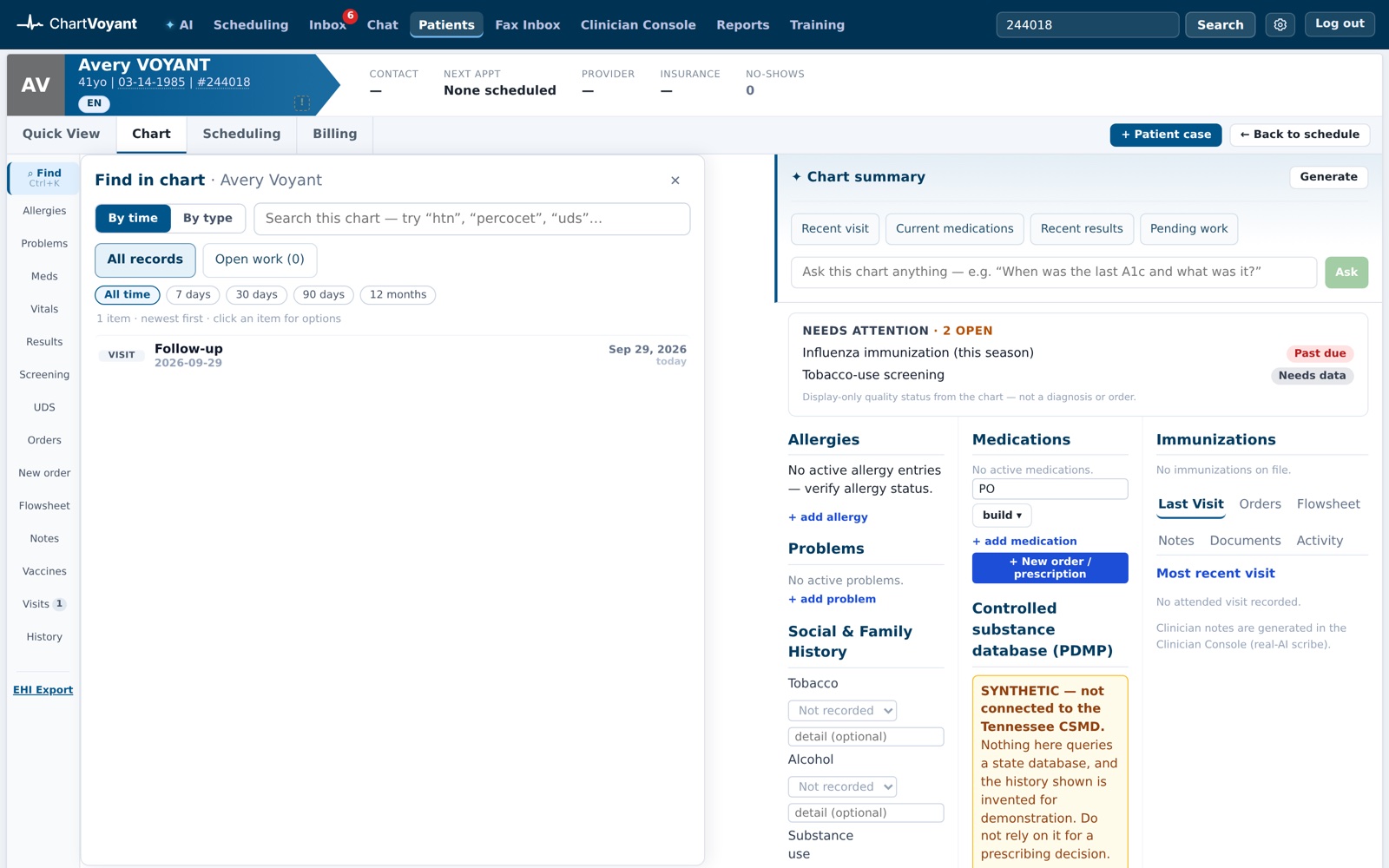
Review notes, medications, results, and documents from a connected patient workspace. Chart Find opens with a keyboard shortcut and helps narrow the record by text, time, or record type, with links back to the underlying source.

  • Chart Find
  • Record-type filters
  • Source records
Synthetic patient chart with Chart Find open and a matching visit result. Connected patient chart · Synthetic demoEnlarge screenshot
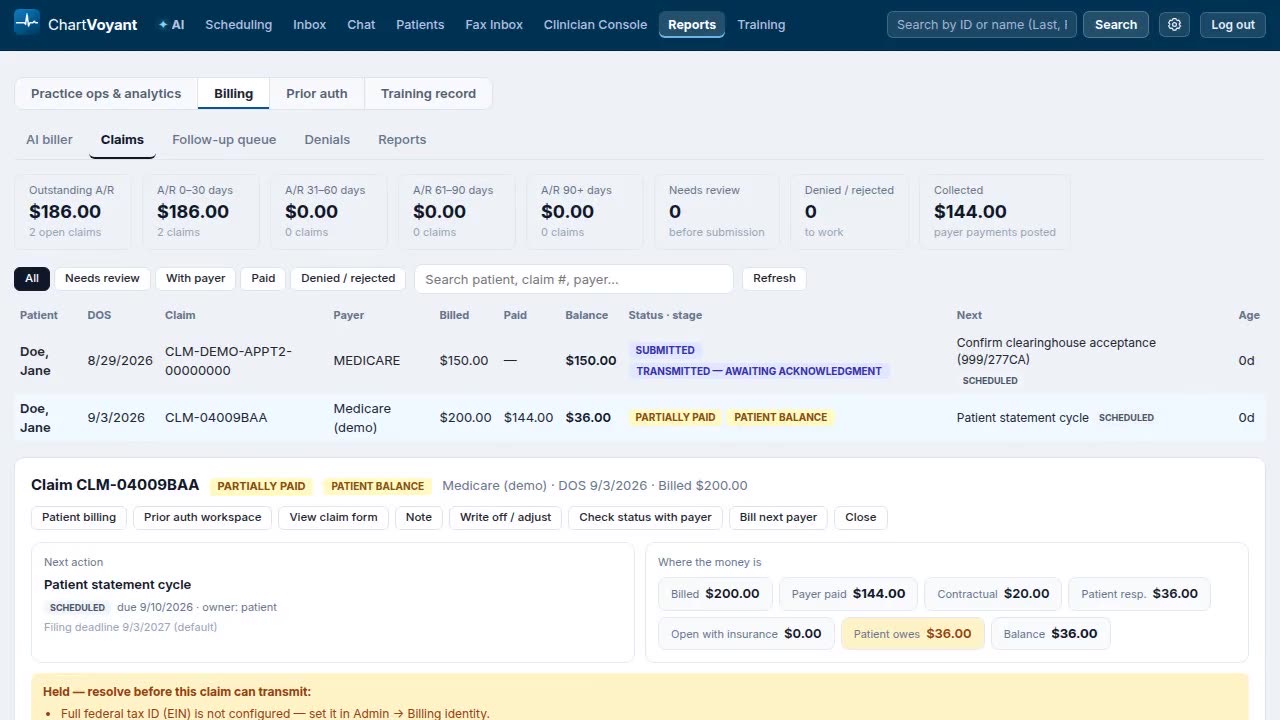
Chart Find surfaces matching records without sending you away from the patient.

05Clinical coordination

An order is the start of the work.

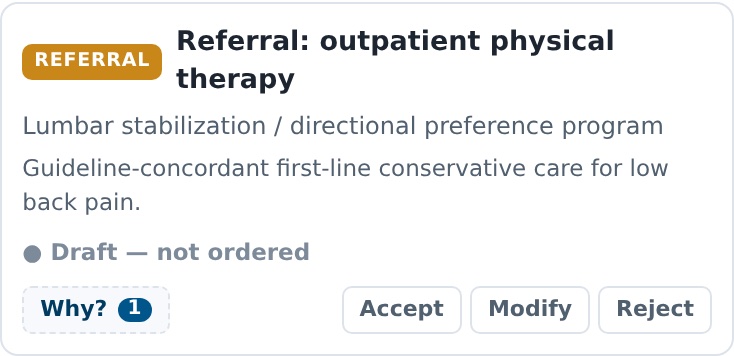
Search medications and available service catalogs, review unsigned orders, and keep the clinical reason close to the request. Routing, ownership, order timelines, and missing-result follow-up help the team carry the plan beyond the exam room.

  • Unified order search
  • Review before signing
  • Follow-through timelines
Synthetic referral order draft with its clinical reason and Accept, Modify, and Reject controls. Orders & follow-through · Synthetic demoEnlarge screenshot
A referral draft presents its reason and review controls before it is accepted.

06Teamwork

Turn a request into a next step.

Work through appointments, refills, results, and team tasks with the relevant actions beside the request. Case-specific steps, saved outcomes, and Quick notes preserve the work already done and make the next handoff easier to follow.

  • Case-specific steps
  • Inline actions
  • Quick notes
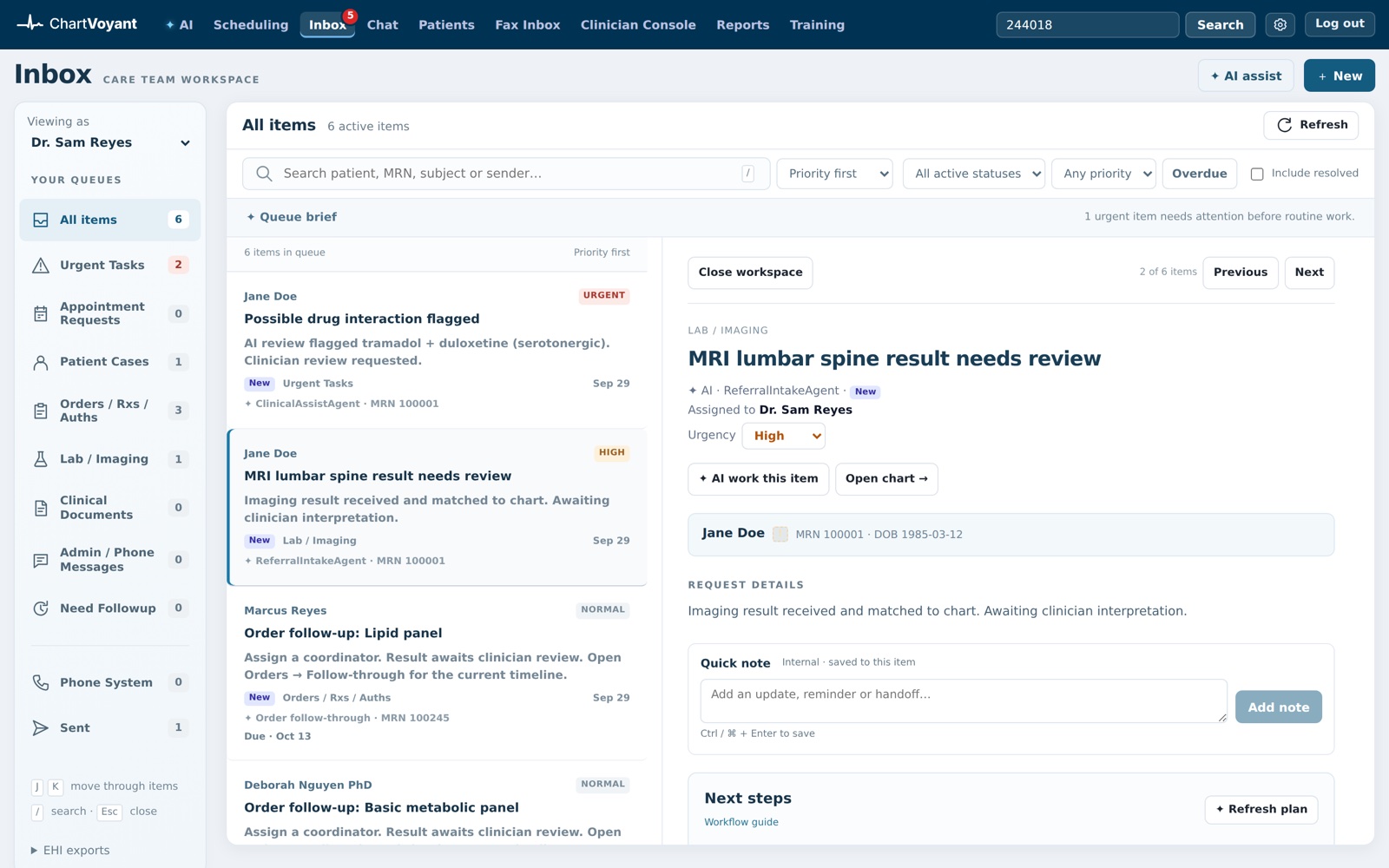
Synthetic care-team inbox with a selected result task, next steps, and case details. Care-team inbox · Synthetic demoEnlarge screenshot
A selected inbox item keeps the request, its context, and next steps together.

07Incoming documents

Give every incoming page a place.

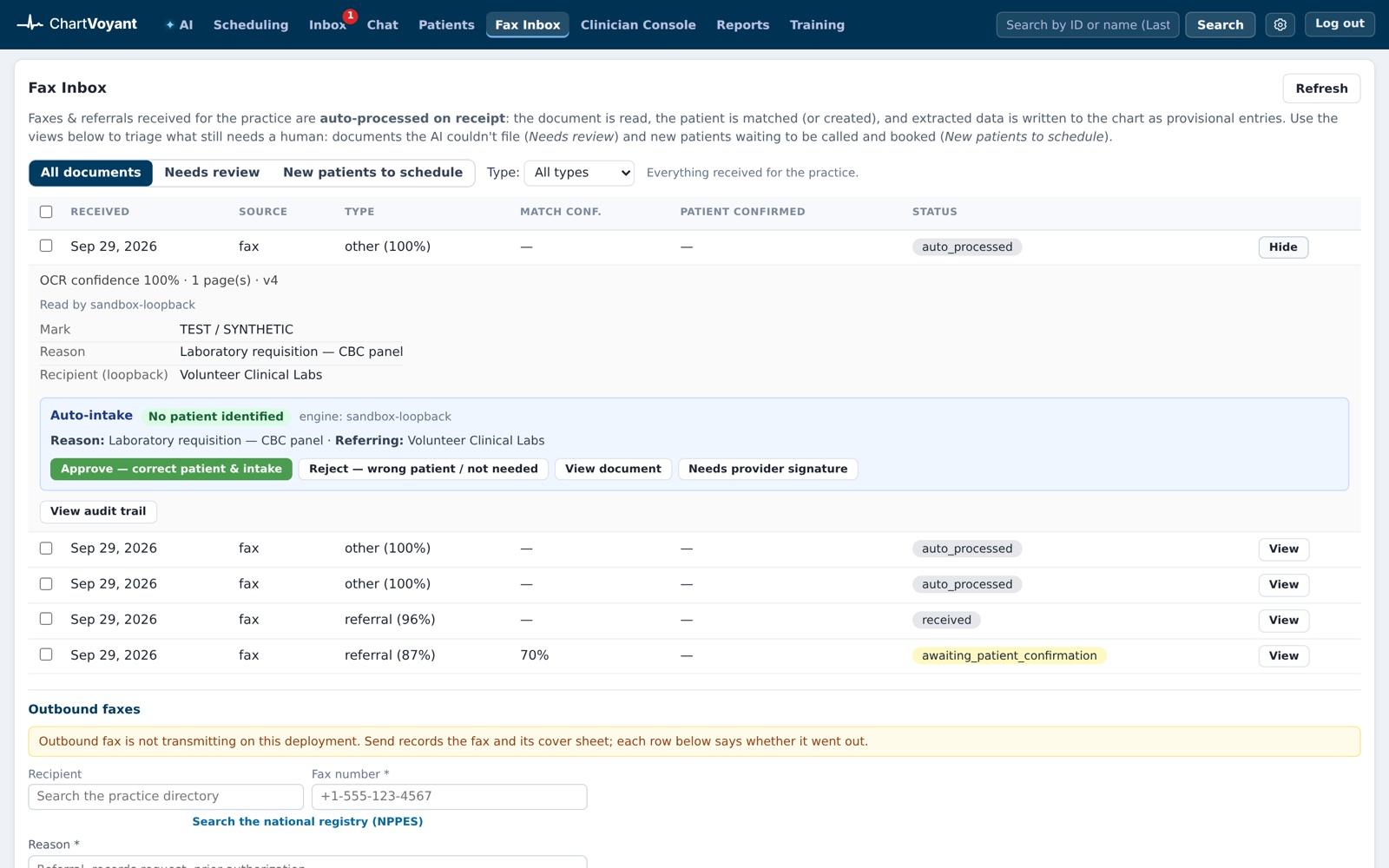
Review incoming faxes with extracted details and patient-matching tools before confirming where they belong. Dedicated queues keep documents needing attention and new patients awaiting scheduling visible to the team.

  • Document extraction
  • Patient matching
  • Referral queues
Synthetic incoming fax review showing extracted document information and confirmation controls. Fax & referral intake · Synthetic demoEnlarge screenshot
Staff review a synthetic incoming fax and confirm its chart destination.

08Coverage coordination

Keep authorizations moving forward.

Keep medication and procedure authorizations in one worklist, with ownership, next steps, payer references, and decisions. Prepare the supporting documentation, track what the office or payer still owes, and review appeal drafts when a request needs another look.

  • Authorization worklist
  • Supporting documentation
  • Appeal drafts
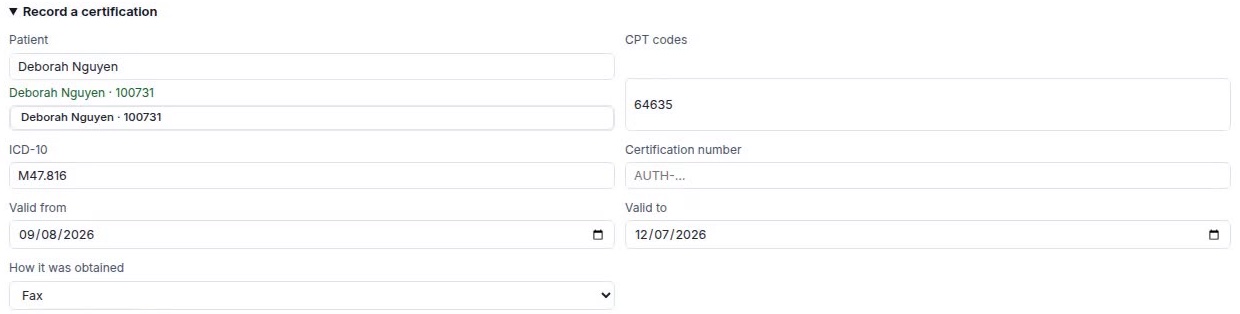
Synthetic prior-authorization certification form for recording a payer decision and authorization details. Prior authorization · Synthetic demoEnlarge screenshot
Record a certification with the patient, codes, approval number, validity dates, and how it was obtained. Cropped to show the form.

09Revenue cycle

Follow the claim through the finish.

Bring claims, denials, balances, and next actions into one billing workbench. The AI Biller works within the practice’s standing rules and brings exceptions back for a person’s decision, while the claim history keeps the work traceable.

  • Claims and balances
  • Denial worklists
  • AI Biller oversight
Synthetic billing workbench showing claim status, balances, and revenue-cycle actions. Billing & AI Biller · Synthetic demoEnlarge screenshot
The billing workbench brings claim status and financial follow-up into one workspace.

10Between visits

A connection beyond the appointment.

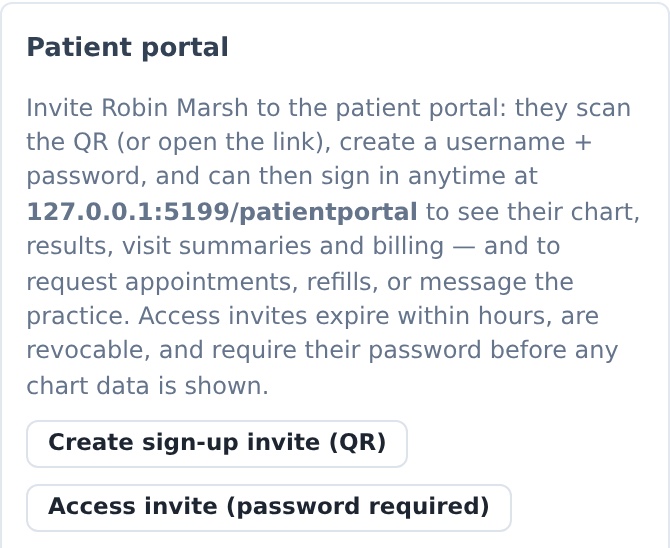
Give patients a place to view released records, signed visit summaries, appointments, and billing from their phone or browser. Secure messages and refill requests connect back to the care team, while staff manage portal access from the chart.

  • Released records
  • Secure messages
  • Refill requests
Synthetic staff-side portal panel showing patient portal access and communication controls. Patient portal · Synthetic demoEnlarge screenshot
Staff view of portal access and patient communication. This is the chart-side workspace.

Take the next step

Put the whole day in perspective.

Explore ChartVoyant with sample patients, or talk with us about the way your practice works.

All screenshots show synthetic demo or training data, with no real patients. Clinical AI supports clinician review (Non-Device CDS); it does not sign or independently make clinical decisions. External prescribing, payer, and payment services depend on practice setup and activation.