Chrome extension
ChartVoyant, beside the chart you have open in athenaOne.
Open a patient's chart in athenaOne and the extension finds them in ChartVoyant. One button starts their GLP-1 visit, starts them on GLP-1, or registers them with what the chart shows already filled in.
Version 1.1.0 · a 43 KB zip file · for Chrome on a computer. You use your usual ChartVoyant sign-in.
Install it in five steps
About two minutes. You do this once on each computer.
-
Download it and unzip it
Press Download the extension, then open the zip file (double-click it). You get a folder named chartvoyant-athena-extension.
Put the folder somewhere it can stay, such as Documents. Chrome runs the extension from that folder, so do not delete it afterwards.
-
Open Chrome's Extensions page and turn on Developer mode
In Chrome, type chrome://extensions in the address bar and press Enter. Then turn on Developer mode, at the top right.

The switch is at the top right of the Extensions page. -
Press Load unpacked and choose the folder
A row of buttons appears. Press Load unpacked and choose the chartvoyant-athena-extension folder: the folder itself, the one with manifest.json inside it.

Load unpacked is the first button in the row. -
Check that ChartVoyant for athenaOne is in the list
It appears as a card. To keep its button in view, press the puzzle-piece icon beside Chrome's address bar and then the pin next to ChartVoyant.
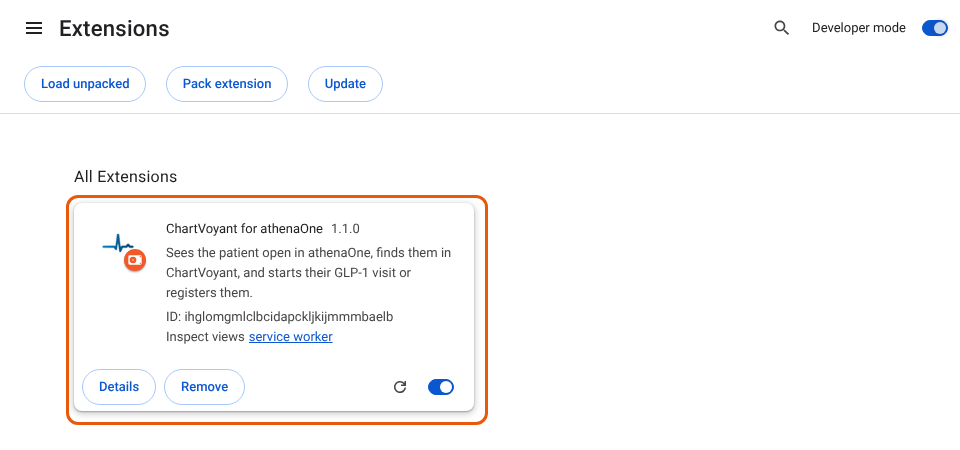
The card shows the version you installed. -
Sign in to ChartVoyant, then open a chart in athenaOne
In the same Chrome, sign in to ChartVoyant. Then open a patient's chart in athenaOne. If athenaOne was already open, reload it once. The ChartVoyant panel appears at the bottom left of the chart.
What you see
The panel checks the patient for you as the chart opens. These pictures use an example chart and made-up patients.
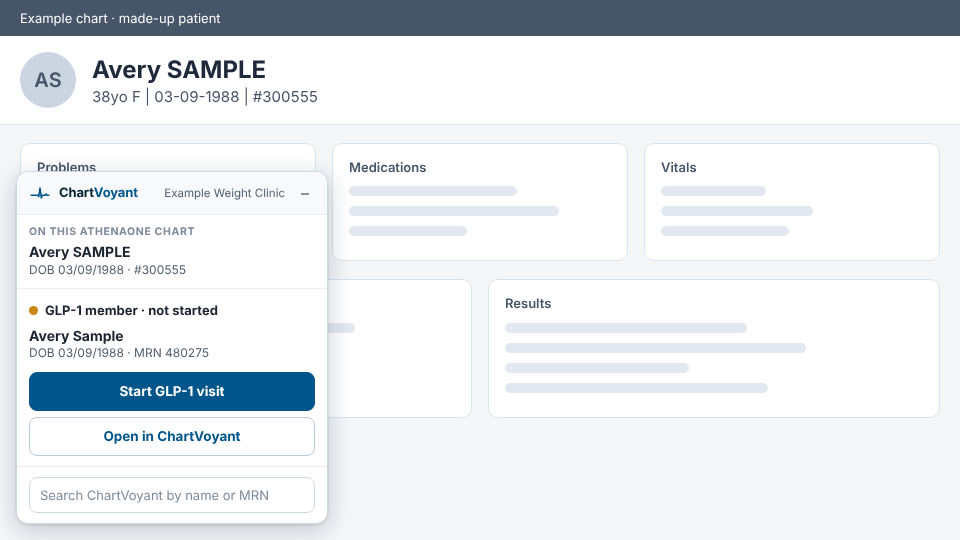
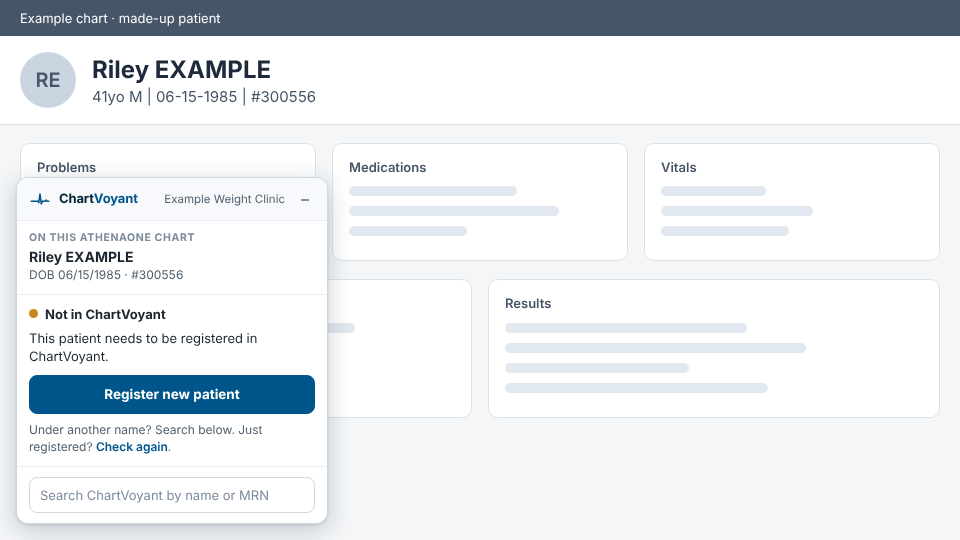
What it does, and what it leaves alone
- It reads the patient banner of the athenaOne chart you have open: the name, date of birth, sex, athenaOne patient number, and the phone number and address the banner shows. It reads nothing else on the page.
- It asks ChartVoyant, under your own ChartVoyant sign-in, whether that patient has a chart and a GLP-1 membership. Each check is recorded in ChartVoyant's audit trail.
- It never changes anything in athenaOne, presses anything there, or sends anything to athenaOne.
- It keeps nothing about a patient on the computer's disk. What it remembers stays in the browser's memory and is gone when Chrome closes.
- If the patient is under another name in ChartVoyant, search by name or MRN in the panel.
- The GLP-1 buttons need the GLP-1 module turned on for your office.
It keeps you signed in while you work in athenaOne
ChartVoyant signs you out after 15 minutes with no input (your practice may set less). With the extension installed, input in athenaOne counts as well, so ChartVoyant is still signed in when you press a button in the panel. Leave both alone for that long and you are signed out, as before.
Updating it
This page always has the current version. To update, download it again, replace what is in your chartvoyant-athena-extension folder with the new files, and press the round arrow on the ChartVoyant card on Chrome's Extensions page.
If the panel does not see a chart
With a chart open, the panel should name the patient. If it says No patient chart on screen, press Copy a report in the panel and send what it copies to ChartVoyant Support. The report describes the layout of the page with every letter and digit replaced, so it holds no names or numbers.
Need help? ChartVoyant Support · (855) 686-9268
athenaOne is a trademark of athenahealth, Inc. ChartVoyant is not affiliated with or endorsed by athenahealth. Chrome is a trademark of Google LLC.